 sensor labs
Settings
Save progress, sign in and export your workspace
Resume setup, recover account access and handle save problems.
Screenshots use sample company data. Captured November 12, 2026.
Sign in or recover access
Use Create an account on the login page for a new account. If a confirmation email is requested, follow it before signing in. Forgot password? starts the recovery flow. Use the same email when returning to your saved workspace.
Each account owns a private supplier workspace. Buyer requests share only their deal conversation, approved profile and explicitly granted samples with the participants. Sharing the website URL does not share the private workspace.
Open sign inCheck the save status
Unsaved changes means a draft is still local to the current screen. Continue, Save changes and Save & exit save the relevant draft. Portal navigation also attempts to save before leaving. Wait for Changes saved before closing the tab.
If you see a save error, keep the tab open and retry when the service or connection recovers. If another save changed the workspace revision, reload the latest saved version and reconcile your intended change. Keep a note of unsaved edits before reloading.
Download your records
Settings → General offers Workspace JSON and Company summary downloads. Workspace JSON includes internal answers, notes and deal records; the company summary leaves out offers, referral codes, insurance documents and internal notes. Data → Sources also offers an inventory CSV.
Keep private exports in company-controlled storage. Source archives stay in your own systems; the portal stores their metadata. A workspace export does not include the raw emails, messages or source files.
Open General settingsAfter setup
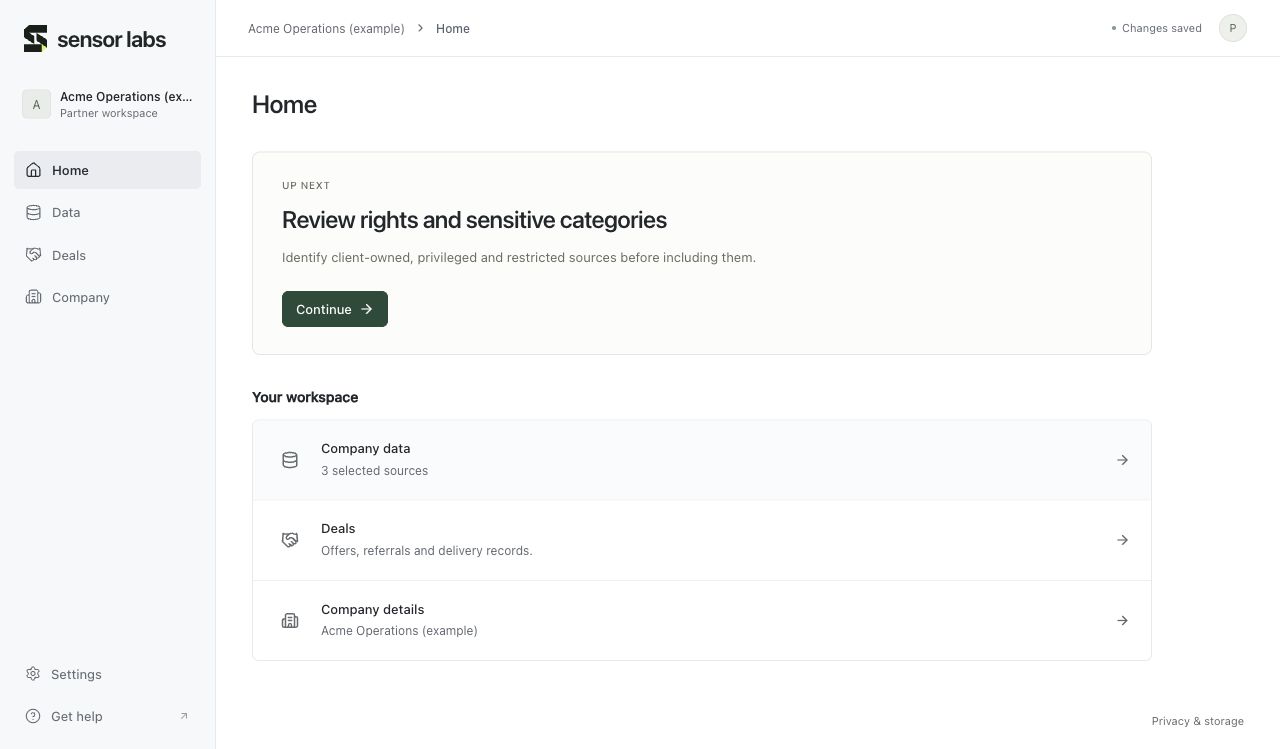
Home points to one next incomplete action. Use Data for inventory, Deals for commercial records, Company for reviews, and Settings for account and assistant access. You can always return to the visual walkthrough from Help center.