 sensor labs
Settings
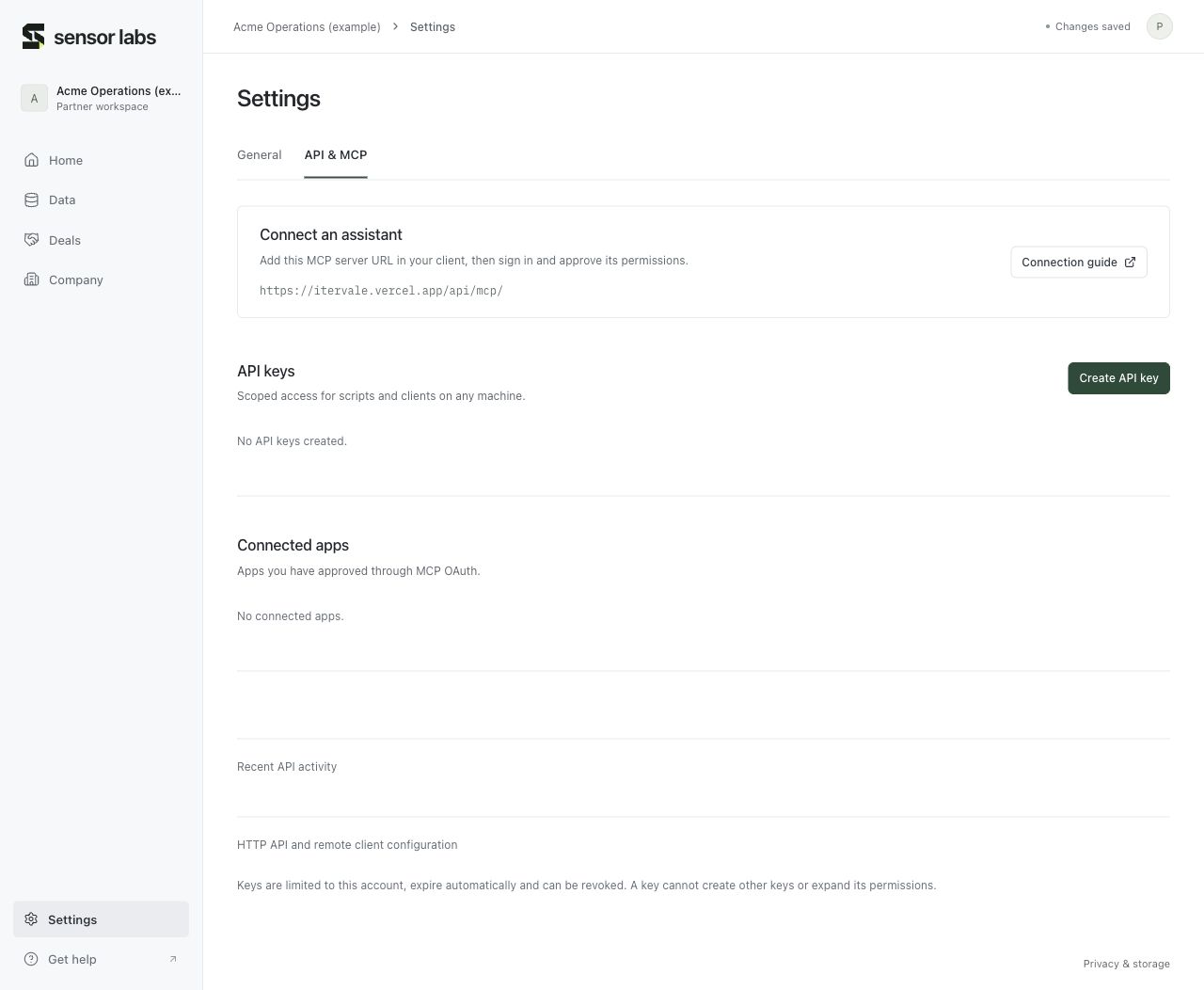
Connect an assistant with API or MCP
Find the connection settings, approve permissions and manage access.
Screenshots use sample company data. Captured November 12, 2026.
Connect through MCP
Open Settings → API & MCP. Add the MCP server URL shown there to a compatible client. OAuth-capable clients guide you to sign in and approve specific permissions; the client handles its own return address.
The same workspace is available through the portal, HTTP API and MCP. Access depends on the approved scopes. You do not need to run a script to generate a secret or assume the agent’s machine has a browser.
For scripts and headless clients
Create API key reveals the key name, lifetime and permissions. Choose only the access needed. The server returns the generated key once; save it in your secret manager. Keys expire and can be revoked. Never paste keys into inventory notes, source counts or a support screenshot.
Connected apps and API keys have separate controls in Settings. A delegated assistant cannot create keys or expand its own permissions.
Read the API and MCP referenceKeep automated edits in sync
The API reference includes schemas, operation discovery and examples. Writes require the latest revision and an operation ID. When a save conflicts, reread the resource before applying your intended change. If a response is lost, retry the same operation ID and arguments rather than creating a duplicate write.
Help articles are also discoverable through help_list and help_get. Export guides and assistant tasks are available through guides_list, guides_get and guides_task.